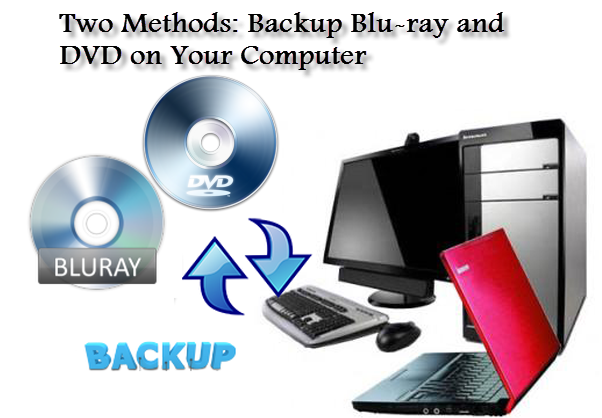
As we all know, Blu-ray/DVD discs are very expensive (especially Blu-ray disc), mainly because of its strong support for capacity storage and high-definition video. Therefore, if our Blu-ray/DVD discs cannot be played properly caused by the child's carelessness, wet weather, playback times or over-long storage time, etc., it would be very regrettable thing.
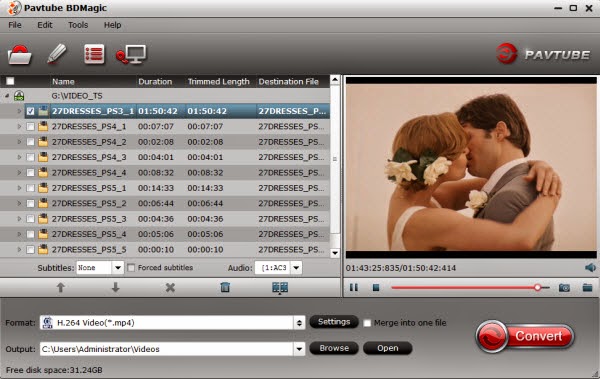
So, in order to avoid such regret, the most sensible way is to do a disc backup. The top Blu-ray/DVD Backup tool has become increasingly common due to mature technology and low price, it will become one of the most common backup method. In this case, we need a third-party software to avoid damage to expensive and fragile Blu-ray/DVD disc. Which software can help backup Blu-ray/DVD discs? Is there any reliable tool which can help the owners of Blu-ray/DVD discs conquer these technologies, and cope with all encryption means in the future? Here, we suggested you Pavtube BDMagic, a powerful Blu-ray Disc handling tool integrating disc backing up(ripping) and transcoding functions. For backing up, it can make a 1:1 copy of BD movies to your computer with all subtitles, audio streams and chapter information included, as well as directly copy BD main movie without extras. Moreover, it can re-encode Blu-ray movies to HD and SD video in over 50 file formats including H.264/MPEG-4, DivX, XviD, MKV, MP4, AVI, MPEG, WMV, FLV, SWF, F4V, MOV, 3GP, etc. Note: If you are Mac users, you can Download the Pavtube BDMagic for Mac. Method 1: “Full Disc Copy” maintaining original structure without loss 1.Install and launch the Blu-ray/DVD Copying software. Click “Load file(s)” to load original Blu-ray/DVD discs. You need a Blu-ray Disc drive (either external or internal) to read Blu-ray Disc.
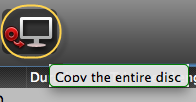
2.Click the quick button "Copy the entire disc" to start copying Blu-ray with original structure. As soon as the copying task finished, you can click "Open" button to locate the Blu-ray directory. The decrypted Blu-ray folder contains all information and contents in the original disc. Among them, the BDMV folder is the most important one with audio and video files in it. Open BDMV -> STREAM folder and you will find all the .m2ts movie clips. Method 2: Directly Copy only Blu-ray/DVD Main Movie and Leave Out Extras Step 1. Load Blu-ray/DVD movies. Insert Blu-ray or DVD Disc with the Blu-ray drive. Launch the Pavtube BDMagic and click "Load Disc" button to import Blu-ray/DVD movies.
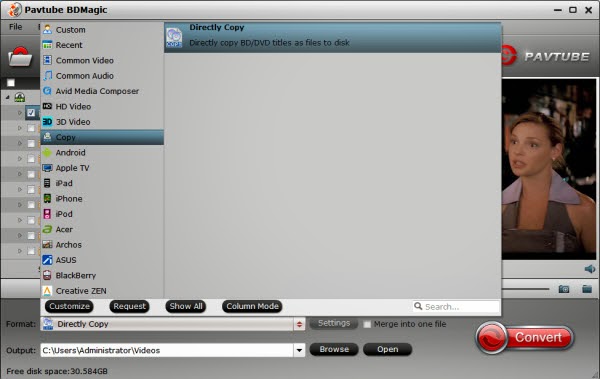
Step 2. Choose Directly Copy Blu-ray/DVD discs. Click "Format" bar, choose "Copy" > "Directly Copy" from the Format menu and then specify a folder to save the M2TS/VOB files from Blu-ray/DVD discs. Step 3. Start Blu-ray/DVD backup on Computer. Hit "Convert" button to start copying M2TS/VOB streams from your Blu-ray/DVD Discs to hard drive. When the copying work is done, you are able to click "Open" button to get the output .m2ts or .vob files without any other extra structures or contents. You're done! Now you may got known how to backup, copy Blu-ray or DVD discs on computer when you wanna keep your Blu-ray/DVD discs from scratching, or manage movies in a more convenient way.
This article introduces a review of the best DVD ripper for Windows 8.1/8 Tablet and tells you how to rip and convert DVD to Surface RT, Surface Pro, Surface 2, Surface Pro 2, Surface Pro 3 ...
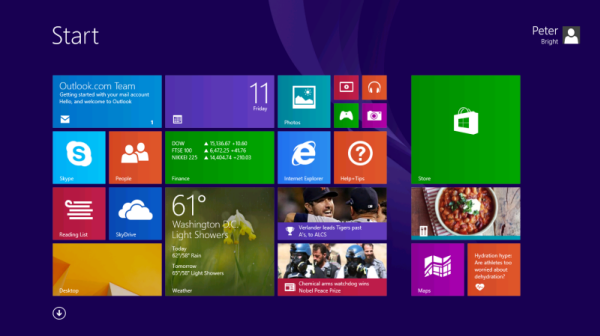
Windows 8.1 is here just a year after Windows 8. This update—free to existing Windows 8 users- doesn't fundamentally alter any of the objectives or design goals of Windows 8. Microsoft still wants to have one operating system that can span tablet and PC- and, if one looks further into the future, perhaps even the smartphone, too.
Windows 8/8.1 Tablet, such as Surace RT, Surace Pro, Surface 2, Surace Pro 2, Surface Pro 3, etc. are the market hot spots. They are all perfect for watching videos on the go. However, Windows device don't have the DVD drive for playing DVD movies. That means, if you want to watch DVD movies on your Windows 8/8.1 Tablet anytime and anywhere you like, you will need to rip DVD to its compatible video formats like MP4 at first. Software Requirement:
1. Run Pavtube DVD Converter, and click “Load file” button to browse and import DVD movies that you want to convert for viewing on Windows 8/8.1 Tablet (Surface, Asus VivoTab, Windows Phone).
2. Highlight the movie title you want to rip, and then you can click the dropdown menu after “Subtitles” and “Audio” respectively to select your wanted subs and audio track to be preserved in the resulted MP4 files.
3. Choose "Microsoft Surface Windows RT/Pro H.264 (*.mp4) Video" as target format from “Windows” pull down format presets. Or you can select other Windows 8/8.1 Tablets profile. Just search the device by enter "surface" in the search box and find the profile.
4. Click "Settings" button to configure file quality for Windows 8/8.1 Tablet. After entering “Profile Settings” panel, you are allowed to adjust video and audio parameters such as bit rate, frame rate, sample rate and more.
Note: If you prefer a much better video quality and don’t mind the output file size, you can rise the video bit rate higher. Generally speaking, the higher video bit rate will result in the larger output file size, and vice versa.
5. Click "Convert" button to start DVD to Windows 8/8.1 Tablet Conversion.
As soon as the conversion is done, you can click “Open” button to get the generated MP4 files and transfer them to your Windows 8/8.1 Tablet for playback with ease.
You can follow the easy steps to transfer converted videos to Windows 8.1/8 Tablet:
1.Copy files onto a USB flash drive or memory card on your other computer. 2. Insert the USB flash drive or memory card into Windows 8/8.1 Tablet. 3.Tap or click the notification that appears in the upper-right corner of the screen. 4.Tap or click Open folder to view files. 5.Select the files or folders you want to add to surface, tap or click Home, and then tap or click Copy to. 6.Select a location. For example, choose Documents if the flash drive or memory card contains documents
Summary: This article mainly shows you how to backup and convert Blu-ray/DVD to any media player like desktop/tablet for enjoying.
I'm a movie lover and BD DVD collector, and I like watching/getting my disc for playing on my media players. Here comes my question:
I wanted a program that could backup the dvd & blu-ray discs. The only output file I want is .mp4 as my media player can play .mp4 just fine as can my tablet. I plan on watching them mainly on desktop, but also sometimes on tablet. Though I can watch the few blu-ray/dvd discs but some media player don't support playing? So how can I get blu-ray dvd movie playback without limitation. Any easy workflow?
To save the time looking for Blu-ray/DVD disk from the cardboard, desk or the tons of collections, you can make a copy or backup your Blu-ray/DVD at first. Now, I will show the simply steps on how to lossless backup Blu-ray/DVD movies with multiple audio tracks, subtitles, and chapter markers without quality loss.
Things you need:
Here we strongly recommended Pavtube ByteCopy (or ByteCopy for Mac) to you. It can not only be able to make a file that can be played by any media player, but also help your backup you BD/DVD to MKV without quality loss and allow full preservation of all audio tracks, subtitles and chapter markers.
If you the movie you wanna convert are Blu-ray, you need a Blu-ray drive.
Then, let's begin the conversion process. Backup your Blu-ray/DVD movies for playing in any media player
Step 1. Run the Pavtube ByteCopy, insert Blu-ray and DVDs and load them by clicking "Load files" or from BD/DVD folder, ISO image file.
After completing movie content loading, this BD/DVD ripper software will analyze your disc and display all the available segments. The app will also automatically choose the recommend title to rip.
Step 2. Specify "Output Format" to select target video format; Specify "Output Path" to preserve the converted videos.
If you choose "Lossless/encoded Multi-track MKV(*mkv)" format, you can output the BD/DVD with lossless quality and allow multiple audio tracks, multiple subtitles.
You may make personal settings before the ripping start. One special function that makes ByteCopy stands out is you can easily select you needed tracks, subtitles.
Step 3. Just click Convert Button, and you can do other things before the Blu-ray/DVD backup is completed.
After that, you can watch Blu-ray DVD movie directly on your desktop, or transfer it to your tablet for enjoying.
Tip:
If you do not need the keep the multiple audio and tracks and subtitles, Pavtube DVD Ripper is the professional DVD ripping software for you. It also has the Mac version: Pavtube Blu-ray Ripper for Mac. More Related:
This is a thorough hands-on review on the "Frozen (2013)" new Blu-ray/DVD release. And give you some tips on how to backup Blu-ray/DVD to external hard drive, or watch on your portable devices.
Frozen is a disney movie starring Kristen Bell, Josh Gad, Idina Menzel. Frozen is rated PG. Frozen DVD, Blu-Ray is now, why not settle in with this hot film- Frozen and enjoy it with your family and friends? Now let's see the popular "Frozen (2013)", a 2013 American computer animated epic musical fantasy-comedy film produced by Walt Disney Animation Studios and released by Walt Disney Pictures.
Part I: Frozen, 2013. Movie Reviews
Directed by Chris Buck and Jennifer Lee.
Featuring the voice talents of Kristen Bell, Idina Menzel, Jonathan Groff, Josh Gad, Ciaran Hinds, Alan Tudyk, Chris Williams, and Jack Whitehall.
Rating: PG Length: 102 mins.Year: 2013 Cast: Kristen Bell, Josh Gad, Idina Menzel Genre: Adventure Animated Blu-ray Comedy Musical
SYNOPSIS:
Fearless optimist Anna teams up with Kristoff in an epic journey, encountering Everest-like conditions, and a hilarious snowman named Olaf in a race to find Anna's sister Elsa, whose icy powers have trapped the kingdom in eternal winter.
Loosely adapted from the Hans Christian Andersen classic "The Snow Queen," the 3-D animated film "Frozen," is a musical/fantasy/comedy from the Walt Disney Animated Studios. Featuring (in both voice and singing roles) Kristen Bell, Idina Menzel and Jonathan Groff, "Frozen" is the 53rd production in the Disney Animated Classics series.
"Frozen" introduces a new Disney princess, Anna the Ice Princess, joining such familiar Disney characters as Cinderella, Snow White and Sleeping Beauty. Mystical trolls, sub-zero surroundings and charming snowmen and reindeer all contribute to the adventure, which involves Anna (Ms. Bell) enlisting a gruff, rugged mountain man to assist her in locating and rescuing her sister Elsa, who's unintentionally trapped the Kingdom of Arendelle in wintry, blustery conditions. Time is obviously of the essence in a race to save not only Elsa, but also the helpless citizens of the frozen Kingdom.
"Frozen's" soundtrack features music from the husband/wife team of Robert and Kristen Anderson-Lopez, noted composers who have contributed on other Disney productions such as Winnie the Pooh, Finding Nemo and Phineas and Ferb.
Frozen Trailer
Part II: How to Backup and Play "Frozen (2013)" Blu-ray/DVD movie on your smartphones or tables?
In case that you have downloaded the "Frozen (2013) " Blu-ray movie, it is known that the Blu-ray Disc is fragile and any scratch may lead to the impossibility of playback. Most people suffer the pain of destroying your favorite movie by scratching the disc. Maybe your kids are a bit too rough with it, maybe your disc player decides to chew on it or maybe you are just unlucky. Such as:
"I have many bluray discs and Sometimes my kids have damaged them. So I want to keep copy on the kids movies before I let them use them"
"I want to make a digital version of my large Blu-ray collection. In an effort to safe my original discs from being ruined, i'm too late for a few."
In this case, it is possible to buy Blu-ray or DVD movies as digital downloads to avoid discs completely, but you will be disappointed that movie downloads don’t match the picture quality of Blu-ray discs. So looking for third-party software to backup Blu-ray discs without sacrificing the picture quality seems to the best choice for you. And for those who rent lots of movie of discs, it is also a great way to copy the discs for future watching.
Now I'd love to share my experience with you guys. Last year, I was also looking for best Blu-ray backup workflow (painful) for quite a while until I met this Best Blu-ray Ripper.
Overall, Pavtube Blu-ray Ripper is designed as a professional Blu-ray/DVD converting program which works with 1:1 backup solution and convert Blu-ray/DVD to MKV/MP4/MOV/M4V/MPG/FLV/AVI/WMV, etc. Well I haven't got the chance to try every profile, but it's really the best Blu-ray/DVD backup tool I've met ever; I mean it's ease of use, not fuss and simple to follow. This best Blu-ray Ripper can rolls off Blu-ray/DVD disc protection, supports loseless 1:1 Blu-ray backup and keeps all the disc titles and chapter structure perfectly.
For instance, if you simply want to back up Frozen (2013) Blu-ray to external hard drive, here are two solutions:
1. Click the "computer" icon on the top to output 1:1 Blu-ray file exactly the same as original.
2. Select "Copy>Directly Copy" in format list to output an intact m2ts file of the main title.
For people who want to watch "Frozen (2013)" Blu-ray on your device, you can choose the well compatible with it, e.g. H.264 .mp4 for conversion.
There are optimized format for Galaxy Tab 2, Xoom, Acer Iconia Tab, Asus Transformer, Google Nexus 7, Kindle Fire HD, HTC One, Galaxy S3, Galaxy Mega 5.8/6.3, iPad Air, Apple TV, Surface RT, Surface Pro and more.
Basically the"Common Video -> H.264 Video (*.mp4)" is a universal format for tablets and smartphones. Or depends on your device, you can choose a suitable video format from "Android", "iPad" or "Windows" catalogue.
Highlights:
1. Successful loading all Blu-rays. Unlike Xilisoft Blu-ray Ripper and Aimersoft Blu-ray Ripper which I tried but failed on loading Blu-rays, Pavtube Blu-ray Ripper recognizes all kinds of Blu-ray and DVD sources: BDMV folder, physical DVD, Blu-ray ISO, VIDEO_TS folder, DVD ISO and IFO file, protected Blu-ray Disc and unprotected Blu-ray Disc. Moreover, and it successfully detects main movie by default.
2. “Full disc copy” feature. Full disc copy is pretty fast, I tried once and it only took 30 minutes.
Tip: I used another Pavtube program called ByteCopy to backup my Blu-rays without quality loss. Meanwhile, several audio tracks and subtitles are preserved so I can switch language when watching movies.
3. Various output profile presets.
4. Video Editor available.
5. Other small but essential functions. Pavtube application takes advantage of the NVIDIA CUDA technology and AMD APP technology, and the conversion speed can be increased up to 6 times faster than ever before.
New Features:
1. Support latest BD and DVD
2. Support Mac OS X Mavericks 10.9 and Windows 8.1 Blue PC perfectly
3. Support adding *.srt and *.ass subtitle
4. Support 3D SBS effect. (3D effect in saved MKV, MP4 and MOV files.)
Good news! As your best tool to rip and convert Blu-ray movies and DVDs to MKV container format with multiple audio tracks and subtitle sinclided, Pavrtube ByteCopy, both Windows and Mac version have updated to the new version!
Windows Version:
Version: 2.2.0
Supported OS: Windows 2003/XP/Vista/Windows 7/Windows 8/Windows 8.1
Description: Want to keep your favourite Movies in Blu-ray/DVD disc on Windows 8.1 Pro tablet for storage? Check out this article to learn how to backup/copy all of your movies.
Desktops, Laptops, Tablets- No matter what kind of device you're working on, be more productive with Windows 8.1. The new Windows devices offers great flexibility and variety. Choose the device that best fits your business needs from a range of form factors. Windows 8.1 Pro is the best Windows yet when working with a mouse and keyboard, delivering more speed, performance and security to boost your productivity on any non-touch device.
For movie lovers, with more and more new movies being released, it wil surely give them a kind of visual Feast for playing their favourite films on powerful Windows 8.1 Pro tablet. Need to back up your favourite Blu-rays/DVDs on your hard drive, then you can easily get the movies playback on Windows 8.1 Pro tablet? This article will tells you how.
At first, to backup all your Movie to Hard Drive, you need to a third-party software to help you. Well, masses of tools can be found on the Internet that makes it reasonably easy to rip and backup Blu-ray/DVDs. But you know, not all the tools are good enough and with no quality loss. In this article, I'll show the best way to rip and backup all of my movies onto Windows 8.1 Pro tablet step-by-step.
For Windows users, here we recommend you to choose Pavtube ByteCopy. Wow, the program works like a charm! It's so easy to use, converts very fast and output lossless videos. Below is my workflow. (Full eview )
Operation system:
Windows 8.1/Windows 8/Windows 7/Windows Vista/2003/XP
1G Hz or above Intel processor.
1GB physical RAM (memory) or above.
1024*768 or higher resolution display.
Optical Drive: DVD drive (BD drive is required for ripping Blu-ray disc)
Tips:
1. There's 6 times limitation if you use the trial version to output lossless MKV files; 2. This program also has a Mac version which works for Mac OS X 10.9 Mavericks, 10.8 Mountain Lion, 10.7 Lion, Snow Leopard 10.6 users, find Pavtub ByteCopy for Mac here.
How to lossless backup Blu-ray/DVD Movies with keeping multi-track for Windows 8.1 Pro tablet?
Step 1. Launch Pavtube ByteCopy and load disc.
Firstly you need an external blu-ray drive;
Click the top left icon and it will detect the inserted Blu-ray/DVD disc, click disc name to load them.
Step 2. Choose lossless format.
Click "Format" list and select "Multi-track Video>Lossless/encoded Multi-track MKV(*.mkv)" as below to lossless backup your Blu-ray/DVD Disc.
Step 3. Adjust V/A settings.
Click "Settings" to enter Multi-track video profile window; switch to "Video" and find the "Encode" box which is unchecked by default, so if you want a lossless MKV copy, do not touch it.
The switch to "Audio", check wanted audio track; so does the "Subtitles".
Step 4. Start backing up Blu-rays to lossless MKV format.
Click the big "Convert" to start the conversion. After conversion, click "Open" or "Open output folder" to quick locate converted files. Ok now the lossless MKV files are prepared; tranfer them to your Windows 8.1 Pro tablet for playback without quality loss!
This article introduces how to backup or copy "The Lego Movie(2014)" Blu-ray disc to Western Digital My Book Live on Mac, so that you can watch the movie on Roku without format problems.
Review: Everything About 'The Lego Movie"
It would have been so much easier, and so much safer, for directors Phil Lord and Christopher Miller to just make the kind of Lego Movie that you probably expected from the marketing. They could have crafted a simple hero’s journey, crammed with celebrity cameos and postmodern humor, and called it a day while watching the money roll in and the toy sales shoot through the roof.
And there are all of these elements in this particular Lego Movie, but there is also something more. The film goes in some wonderfully unexpected directions and takes real storytelling risks. I cannot say how everyone will respond to its narrative left turns and unexpected poignancy, but they elevate to the film far above a glorified toy commercial. The Lego Movie may in fact be brilliant. Expected release date for The Lego Movie DVD and Blu-ray discs is May-June, 2014.
How to bacup "The Lego Movie(2014)" Blu-ray onto Western Digital My Book Live" on Mac
With "The Lego Movie(2014)" to be released on Blu-ray, I have the question: how to digitize a blu-ray movie and put it on my western digital mybooklive device for streaming onto roku devices with Mac OS X?
To copy my Blu-ray on My Book Live with Mac, it may take a lot of energy. Although, MacX DVD Ripper Pro Wondershare Video Converter Ultimate and iDVD can do this, none of them can be easier to use that Pavtube.
The best Blu-ray Ripper for Mac from Pavtube can help you back up Blu-ray and DVD movies to Mac hard drive, copy them to Home Server, NAS for storage and watching them on HDTV and HD Media player including PS3, PSP, Xbox, Dune HD Player, WD TV Live within few clicks. Really simple interface and powerful function. On the roku, I use the roksbox channel, configured to steam movies from the WD/apache server. Works really good on my home network.
Detailed steps to copy "The Lego Movie(2014)" Blu-ray to My Book Live on MacBefore copying Blu-ray discs check what you need:
1. An external Blu-ray drive.
2. Top Mac Blu-ray Ripper software - Pavtube Blu-ray Ripper for Mac
3. Internet connection.
4. "The Lego Movie(2014)" Blu-ray disc.
You can also free download Pavtube Blu-ray Ripper for Mac and have a try.
Step 1. Install and run the Top Blu-ray Ripper for Mac and insert Blu-ray disc into the Blu-ray drive, the Ripper will automatically load the disc information.
Make sure you have enough space on your drive (depending on the disc, this could be up to 50 GB).
Step 2. To copy the M2TS/ VOB streams only without menus and ads, pls choose the "Directly copy" option in "Copy". (The main movie is selected by default.)
Or you can click on “Copy the entire disc” button to back up Blu-ray movie to Mac. A 90 min. Blu-ray takes about 40 min to copy to Mac hard drive.The ripped Blu-ray directory contains two folders, “BDMV” and “CERTIFICATE”. Then the ruku is able to play the M2TS files from Blu-ray directory.
Step 3. Specify an output folder to save Blu-ray movie.
Click “Browse” button and specify an output location. Make sure there is enough space for a whole BD movie (usually 25GB-50GB) when backing up Blu-ray disc to Mac HDD.
Step 3. Back up Blu-ray/DVD for My Book Live on Mac.
After the copying process completes, you can get the final output files by clicking “Open” button with ease, then copy resulting file to My Book Live and then stream onto your Roku.
Additional Tips
The Top Blu-ray Ripper for Mac can help you remove Blu-ray protection and rip "The Lego Movie(2014)" Blu-ray to common formats: MP4, AVI, MOV, MKV, WMV, SWF, FLV, F4V, etc. Most popular portable devices are also supported, so that you can enjoy Blu-ray movies on your iPhone 5S, iPhone 5C, iPad 4, iPad 3, Surface RT/Pro, Surface 2, Surface Pro 2, Sony Xperia Z1, Motorola Droid Mini, Moto X, Samsung Galaxy Tab 3 10.1/8.0, Galaxy Note 3, Google new Nexus 7, Kindle Fire HD...
Plus, Pavtube application takes advantage of the NVIDIA CUDA technology and AMD APP technology, and the conversion speed can be increased up to 6 times faster than ever before. Moreover, Pavtube programs support adding *.srt and *.ass subtitles into video and merge into one file for output.
Looking for a quick way to rip children's movie to iPad for use in car or convert to watching on TV over LAN? Read this article to learn how.
I like watching movies, now I'm looking for a Blu-ray converting program to rip children's movie to iPad for use in car, as well as some movies to watch on TV over LAN. Anythig recommended?
Just rip all your BD/DVDs to your computer or external storage, and you’ve now got a digital library of movies that you can watch at any time from anywhere! If you have any portable device, like iPad or TV, it’s super easy to get your Blu-ray movies for enjoying.
The process is relatively simple, so even if you are not technically savvy, you should be able to backup all of your Blu-ray without an issue and have a format to be used on the iPad/TV. What You’ll Need- Pavtube Blu-ray Ripper which can remove the disc protection and copy source disc to computer hard drive with same structure preserved. Also rips Blu-ray to friendly format with ease. Test it and works well on all my seven devices: 3 smartmobiles and 4 tablets.
Full guide: Make 1:1 Copy Blu-ray movie with Pavtube Blu-ray Ripper
Step 1. Install the Blu-ray Backup Tool on your PC.
Pavtube Blu-ray Ripper/Blu-ray Ripper for Mac is an excellent Blu-ray backing up tool that can make 1:1 copy of your source BD/DVD with original structure including extras and menus. Meanwhile, this app is regarded as a great Blu-ray ripping program and Video Converter to help users convert Blu-ray collections and various videos for new how tablets and smartphones including iPad mini, iPad Air, iPhone 5S, Samsung Galaxy Tab, Kindle Fire HDX 7, Google Nexus 7/10, Media Players and TV.
Step 2. Launch the best BD backup tool, and load your Blu-ray movie from disc drive to the app.
Step 3. Click the “Browse” button to set output folder where you want to save the copied Blu-ray and DVD movies.
Step 4. Hit the Copy the entire disc icon on Video Converter Ultimate main interface and start Blu-ray backing up process.
Tips:
1. If you’d like to copy only movie content and leave out the extras and commentary, the Directly Copy is exactly what you need, which copies intact .M2TS/VOB main movie from original BD/DVD disc without extras.
2. There are various output profile presets.
Many people like me own would love to enjoy movies and TV shows from physical discs to more than one mobile phone and tablet. You can count on Pavtube Blu-ray Ripper because it offers so many output formats that you would find the suitable one eventually.
The general format is "H.264 Video(*.mp4)" from "Common Video" option. For watching on TV, you can choose this format.
You can also choose iPad2 and New iPad format: "iPad Video H.264(*.mp4)" from "iPad" option.
3. Video Editor available in this converter.
Another reason I like Pavtube is it ships with many video editing features, and usually I use it to cut off black bars of original Blu-rays and play full screen on my HD TV at home. Besides, it does more than that. It trims off unwanted commercials from TiVo recordings, add watermarks as copyright protection to your source file, and more.
4. Other small but essential functions.
Pavtube application takes advantage of the NVIDIA CUDA technology and AMD APP technology, and the conversion speed can be increased up to 6 times faster than ever before. Moreover, Pavtube programs support adding *.srt and *.ass subtitles into video and merge into one file for output.
Now you can freely transfer your backed up Blu-rays to iPad for use in car and watching on TV over LAN.